



You've been told your Bloomberg access is approved. Your manager wants the terminal live before the next market open, your IT team wants a ticket number, and you're looking for a clean download path that doesn't trip security controls. That's usually the moment people realise a Bloomberg software download isn't like installing a normal desktop app.
There's no casual public download flow, no lightweight consumer sign-up, and no shortcut around institutional setup. In most organisations, access starts with licensing, an internal administrator, and a controlled machine or approved user profile. The software sits inside a broader operational model built around identity, permissions, support, and accountability.
That difference matters. If you treat Bloomberg like a standard SaaS install, you'll waste time. If you treat it like a regulated workstation deployment, the process makes sense. The installer, the login path, the add-ins, the device controls, and the support model all reflect that reality. Bloomberg's own support materials show that software downloads can include the Terminal, Office add-ins, Webview, BQuant, and related components through a formal client workflow, not a public app-store model (Bloomberg software updates and downloads).
By Daniel Mercer
Table of Contents
- Introduction The Realities of a Bloomberg Software Download
- Securing Your Access and Preparing Your System
- Navigating the Bloomberg Software Installation
- Activating Your Terminal and Biometric Login
- Troubleshooting Common Installation and Access Issues
- Integrating Bloomberg into Your Professional Workflow
Introduction The Realities of a Bloomberg Software Download
A new Bloomberg user usually expects a link, a password, and a quick install. In an institutional setting, that expectation breaks almost immediately. Access is normally tied to your employer, your university, or a named administrative contact who controls who gets provisioned and on what basis.
That's why the Bloomberg software download process should be understood as authorised deployment, not ordinary software acquisition. Someone in your organisation has already made decisions about entitlement, machine policy, support coverage, and in some cases whether you're using a fixed terminal-style setup or a more flexible access model. Your job is to fit your install into that framework.
The practical consequence is simple. You don't begin with the installer. You begin with approval, account status, and the machine environment.
Practical rule: If the user record, device permissions, and local admin path aren't lined up first, the install itself is rarely the real problem.
People also misunderstand what they're downloading. Bloomberg isn't just a single executable that opens a market-data screen. The deployment often supports a wider working environment that includes the Terminal itself, Office integration, and supporting components used for export and analysis. In many institutions, the most useful workflow starts after installation, when the user opens Excel and pulls data through Bloomberg's add-in rather than hunting for standalone files.
That institutional reality shapes everything that follows. Security is tighter. Support is more formal. And the software behaves less like a personal productivity tool and more like a controlled professional platform.
Securing Your Access and Preparing Your System
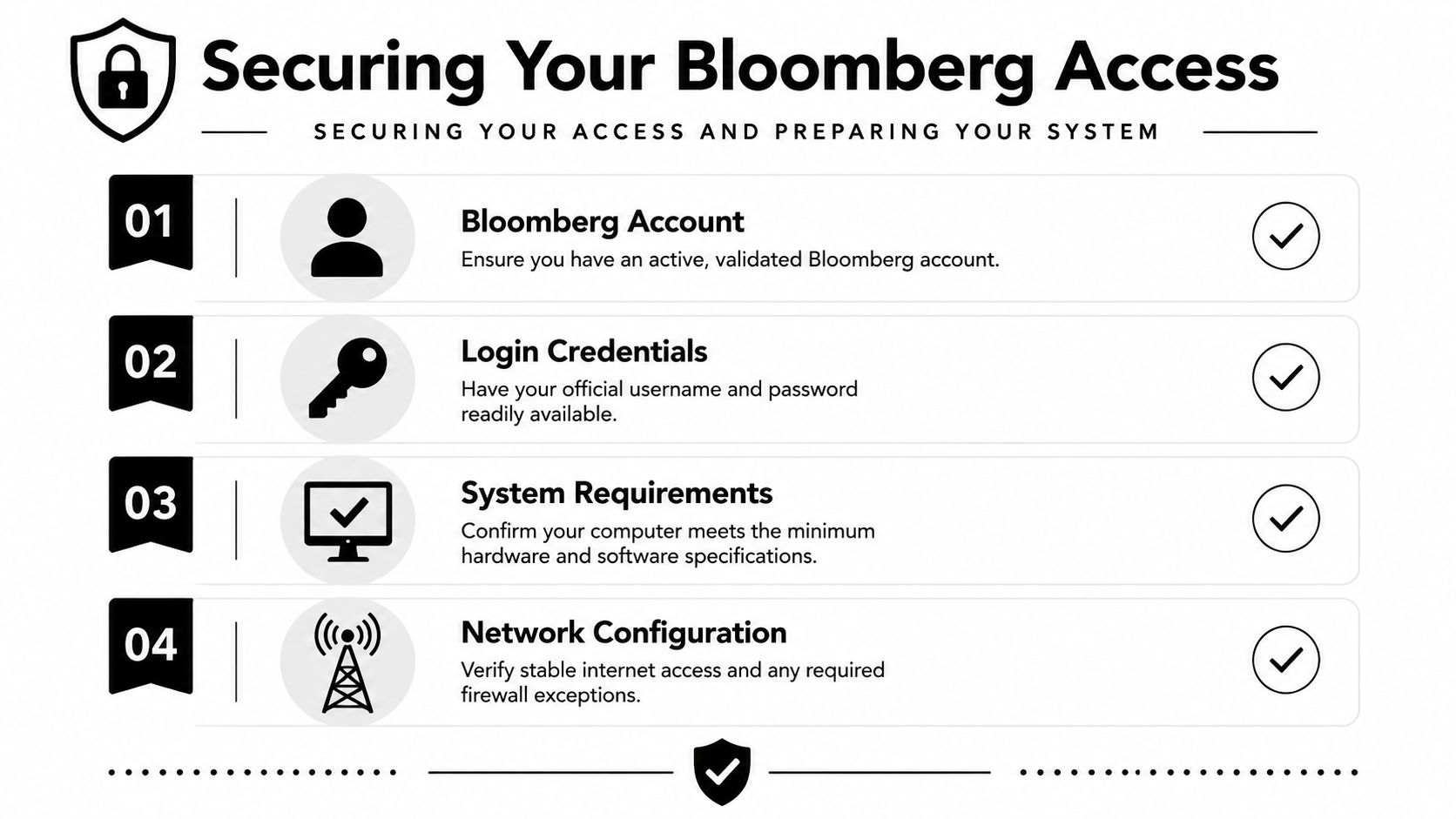
Before you request the Bloomberg software download from IT or launch any installer, verify that your access is live. Many failed installs are really failed provisioning exercises. The software can be present on the machine and still be unusable because the user identity, entitlement, or local environment hasn't been approved correctly.
Start with the licence not the installer
In a corporate, government, or academic environment, the key dependency is usually your institutional Bloomberg administrator. That person or team confirms whether you have a named account, what access model applies, and whether your machine is authorised. You can't self-serve your way around that.
The licensing side also affects how you're expected to use downloaded tools. An IESE library guide describing Bloomberg terminal policy for academic subscribers states that academic accounts have a downloading limit that is “strictly enforced”, recommends using regular worksheet tools because there is “no download limit within the terminal”, and advises users who need large downloads to wait until the end of the calendar month (IESE Bloomberg download policy guidance). That's an academic example, but the lesson carries into any institution. Access terms often govern behaviour more than the software itself.
A quick pre-check should cover:
- Account status: Confirm that your Bloomberg account has been provisioned and validated.
- Credential readiness: Make sure you've received the official login details through your approved internal or Bloomberg onboarding route.
- Local permissions: Check whether you need admin rights, software centre access, or an IT-managed install.
- Usage rules: Ask whether your organisation restricts exports, add-ins, remote use, removable media, or local file storage.
If your institution is formal about workstation governance, it helps to review broader practices that prevent breaches with access control. Bloomberg access should sit inside those same principles, especially where named users, privileged software, and controlled datasets intersect.
Prepare the machine you'll actually use
A Bloomberg deployment works best when the machine is treated as a work tool, not a personal experiment box. If you're on a managed Windows build, ask IT whether endpoint security, application control, or firewall policy requires a standard package instead of a manual install. If you're in a university or public-sector setting, shared lab machines and bookable terminals often introduce extra controls around sign-in persistence and exported files.
Here's the practical distinction I give new colleagues:
| Check area | What matters in practice |
|---|---|
| Device ownership | Corporate or institution-managed devices usually create fewer activation and support issues |
| User rights | Standard users often need an IT-assisted installation for drivers, add-ins, or supporting components |
| Network path | Stable internet access and approved outbound connectivity matter more than raw device power |
| Workspace setup | Multiple displays help, but policy compliance matters before convenience |
One more point often gets missed. If your organisation is serious about digital governance, access to Bloomberg should be consistent with the way it handles sensitive systems more broadly. That same mindset appears in wider debates about cross-border digital risk and policy coordination, including No Borders in Cyberspace.
Bloomberg access is personal, licensed, and supervised. Treat it like controlled infrastructure from day one.
Navigating the Bloomberg Software Installation
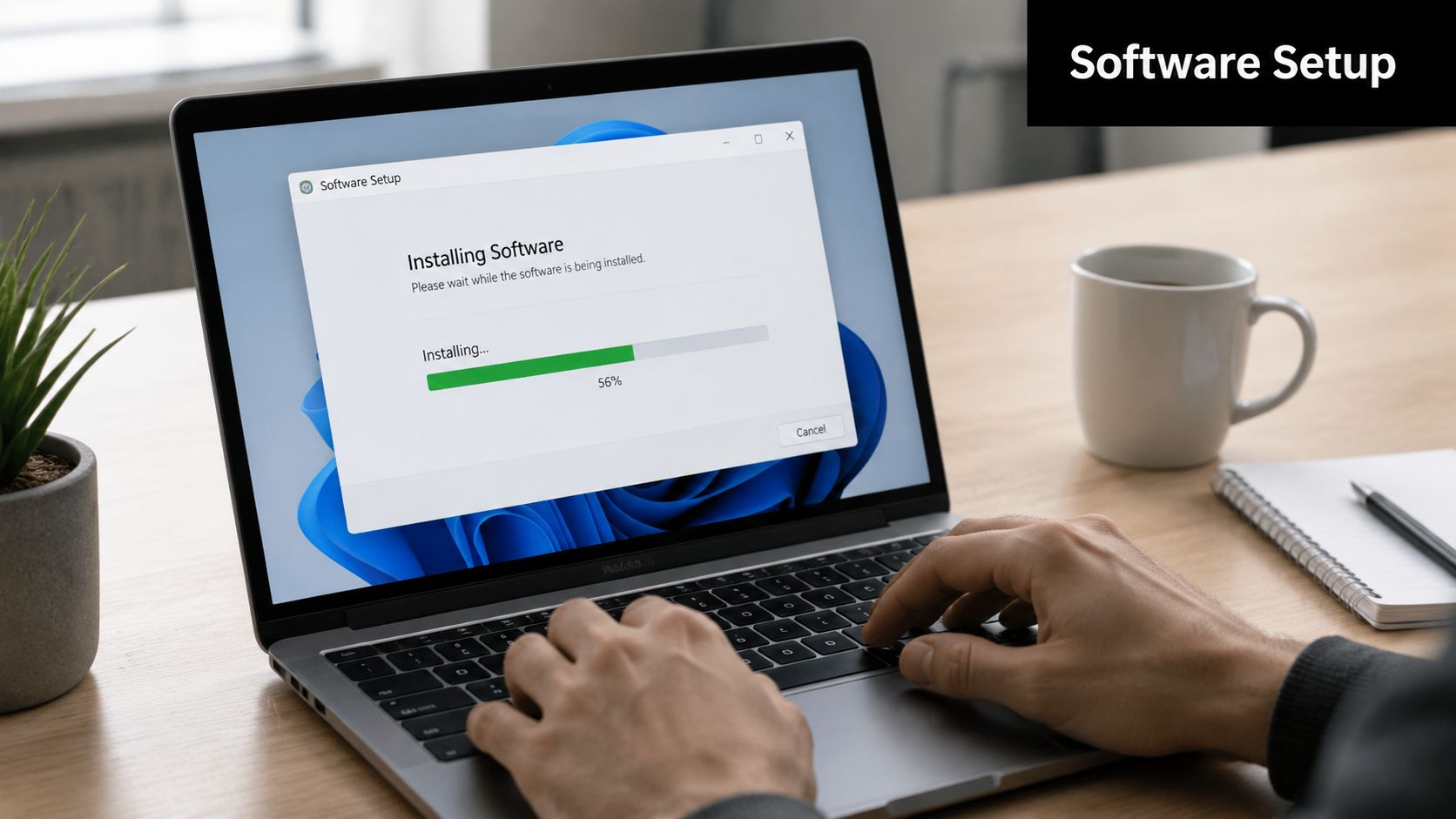
By the time a Bloomberg installer reaches your inbox or software portal, the administrative work should already be done. The licence should be assigned, the device should be approved, and your organisation should know who is responsible for support. In an institutional setup, the download is only one step in a controlled deployment process. If an installer arrives through chat, a forwarded email, or a file-sharing service, stop there and verify the source with IT or your Bloomberg administrator.
What the installer is actually putting on the machine
A Bloomberg software download usually deploys more than the main Terminal application. Depending on your entitlement and local policy, the package may also include Office integration, supporting utilities, and configuration items your team expects to be present on day one. That matters in banks, public agencies, and universities because the software is often part of a defined research or reporting workflow, not a standalone desktop app.
I see the same mistake with new users and local admins. They focus on getting the Terminal icon onto the desktop and treat the rest as optional. Later, the Excel tab is missing, export functions do not behave as expected, or a shared procedure document no longer matches the installed setup.
That is usually a build problem, not a user problem.
There is also a governance angle. In many institutions, Bloomberg output moves into controlled spreadsheets, briefing packs, and audit-sensitive research processes. If your team handles regulated data or identity-linked access controls, it helps to view the installation in the same operational category as other biometric and cross-border data protection controls. The software package, authentication method, and workstation policy all need to align.
What usually works best in practice
Use the standard package your organisation approved. Customising the install to save time often creates more support work later, especially on managed Windows builds with endpoint controls, restricted drivers, or Office hardening policies.
The routine I recommend looks like this:
- Start from the approved distribution path: Use the installer from Bloomberg onboarding or your internal software catalogue.
- Confirm the user context first: Install under the account and permission model your IT team expects, especially if admin elevation is controlled through a service desk.
- Keep the standard component set: Do not remove add-ins or support modules unless your organisation has documented a reason.
- Allow the reboot if prompted: Office integration and device-level components often fail unnoticed when users postpone the restart.
- Validate the install after setup: Check the desktop launch, Start menu entries, and Excel integration before handing the machine to the end user.
A short visual walk-through can help if you're installing for the first time:
A completed installer is only a partial success. The true test is whether the Terminal opens, the user can authenticate under the assigned licence, and the approved workflow tools are available.
Activating Your Terminal and Biometric Login
The first launch feels less like opening software and more like crossing an identity checkpoint. That's intentional. Bloomberg treats user access as a controlled trust relationship between a named person, an entitled account, and an authorised environment.

The first launch is an identity check
A typical first-time experience goes like this. The application opens, asks for your login details, and then moves into a verification sequence tied to your personal account. This is the point where many new users pause, because Bloomberg's security model is more explicit than most enterprise tools.
In many institutional setups, you'll also configure a B-Unit or equivalent authentication method as part of secure access. That step matters because Bloomberg doesn't treat a password alone as sufficient proof of identity for a high-value professional environment. The point isn't convenience. The point is traceability and account protection.
If your organisation gave you a device for biometric or secure login, keep the process disciplined:
- Use the issued hardware: Don't substitute unsupported peripherals.
- Follow driver prompts carefully: Let IT assist if endpoint controls block device setup.
- Register in a quiet session: Failed scans often come from rushed or inconsistent first enrolment.
- Keep your account personal: Never “help” a colleague by logging in for them.
That last point deserves emphasis. A Bloomberg account is attributable to a specific user. Shared use creates both compliance and support problems. If activity has to be investigated, vague ownership is unacceptable.
Where activation usually goes wrong
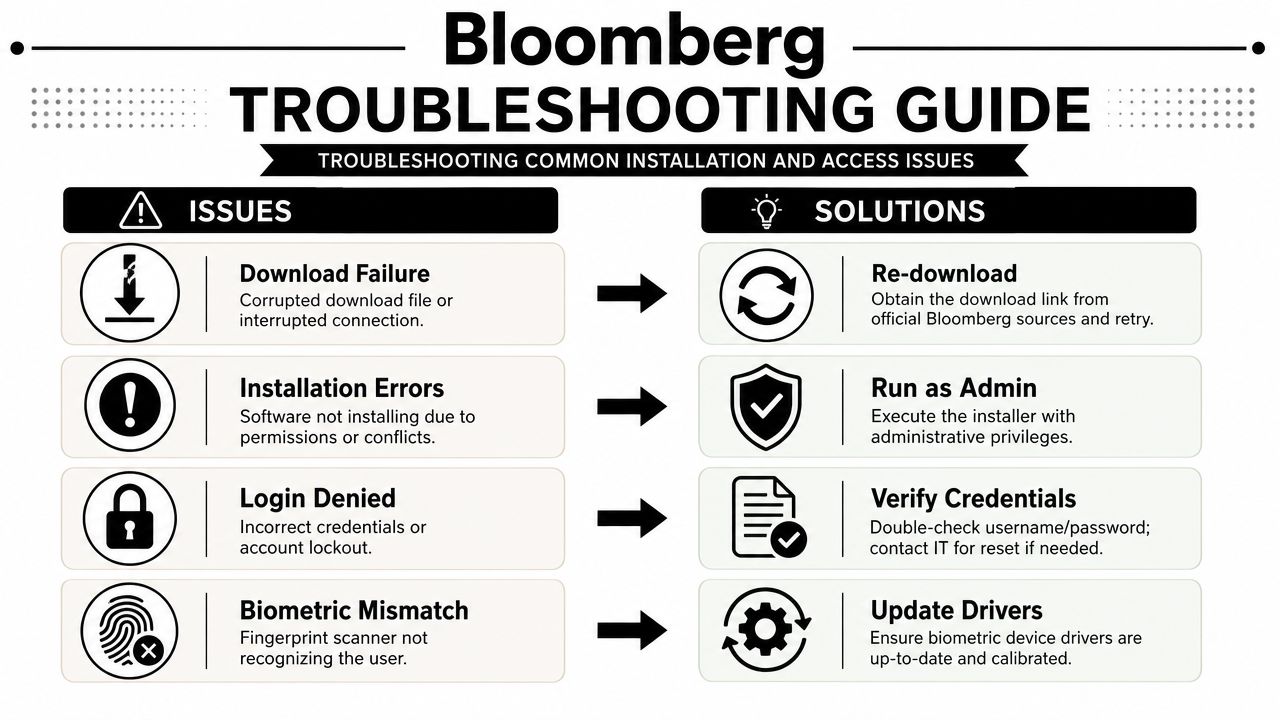
The most common activation problems aren't glamorous. The user enters the wrong credentials, the machine profile lacks a needed permission, the biometric device isn't recognised, or the endpoint stack blocks a driver component. None of those issues are fixed by repeatedly reinstalling the whole application.
Use this quick triage:
| Symptom | Likely cause | Best next move |
|---|---|---|
| Login rejected | Provisioning issue or bad credentials | Verify account status with your admin contact |
| Biometric setup stalls | Driver or device recognition problem | Ask IT to validate local device policy |
| Terminal opens but access is incomplete | Entitlement mismatch | Confirm the account has the expected service access |
| Repeated prompts after setup | Local profile or session persistence issue | Review machine policy with desktop support |
Security teams increasingly frame these controls in broader terms of identity assurance and data handling. That wider policy conversation is reflected in work on biometrics and data and ensuring the safety of transnational borders, where verification design affects both access and trust.
Your first Bloomberg login isn't just onboarding. It establishes who you are in the system and how that identity will be protected.
Troubleshooting Common Installation and Access Issues
A Bloomberg software download can fail for ordinary reasons. The file may be interrupted, the installer may lack permissions, or the user environment may block one of the required components. In institutional environments, though, the bigger pattern is policy friction. Security tools, locked-down Office settings, and managed device standards create most of the calls I see.
When to call internal IT
Call your internal IT team first when the problem looks like a device or network control issue. Bloomberg support can help with product behaviour, but they won't manage your desktop policy.
Internal IT should usually handle:
- Installer permission failures: The package won't complete, rolls back, or appears blocked by endpoint controls.
- Office add-in absence: Excel opens without the Bloomberg tab after installation and reboot.
- Device recognition issues: A connected authentication device isn't seen by the operating system.
- Network restrictions: The application launches but can't establish a usable session because local policy is interfering.
If the Excel integration is missing, don't assume the whole deployment failed. Check whether Office disabled the add-in, whether the user profile loaded the correct component set, and whether the machine needs a restart under the current security context.
When the issue is inside the Bloomberg workflow
Some issues sit inside the way data is being requested rather than in the installation itself. That's especially common when users move quickly from first login to exporting large datasets.
Johns Hopkins' Bloomberg guide advises users to prefer in-terminal export features over the Excel Plug-In where possible, to narrow extraction criteria before downloading, and to split requests into small daily or intraday intervals to avoid incomplete or slow exports (Johns Hopkins Bloomberg downloading guidance). That's practical advice, not theory. A broad request that times out can look like a broken install when the actual problem is an over-ambitious extraction.
Use this decision table:
| Problem pattern | What usually works | What usually doesn't |
|---|---|---|
| Large export stalls | Reduce scope and break the request into smaller intervals | Re-running the same oversized request repeatedly |
| Data looks incomplete | Use in-terminal tools first and refine filters before export | Pulling everything through Excel by default |
| Unclear platform behaviour | Follow Bloomberg's built-in prompts and documentation path | Guessing based on old screenshots or forum posts |
Field note: If the terminal is stable but the data task fails, troubleshoot the extraction logic before you touch the installer.
A useful dividing line is this. If the machine can't install, authenticate, or expose the expected local tools, call IT. If the software is running and the problem appears when using Bloomberg functions, prompts, or exports, escalate through the Bloomberg help workflow from inside the product.
Integrating Bloomberg into Your Professional Workflow
The right mindset after installation is simple. Bloomberg is institutional software first and an analytics platform second. If you respect that order, your day-to-day work gets easier.
Use the platform like institutional software
New users often focus on screens, functions, and data pulls. Experienced users pay equal attention to account hygiene, local storage habits, and whether a workflow fits policy. That isn't bureaucracy for its own sake. It keeps access reliable and protects the licence your organisation is paying for.
In practice, that means:
- Keep credentials personal: Don't share accounts, saved sessions, or approved devices.
- Use sanctioned export paths: If your team expects in-terminal review before Excel extraction, follow that workflow.
- Record recurring processes: If you build a reporting routine in Excel or through Bloomberg tools, document it so someone else can support it without using your identity.
- Escalate through the right channel: Desktop issues go to IT. Product and workflow issues go through Bloomberg support paths.
Build habits that survive audit and turnover
The Bloomberg software download is only the start. True value comes when the platform becomes part of a repeatable, supportable operating model across analysis, reporting, and decision support. Teams that do this well don't rely on memory. They rely on documented setup, approved templates, and clean ownership.
That same discipline sits behind wider institutional digital transformation, where tooling matters less than governance and repeatability. It's a useful lens if you're thinking beyond one workstation and into programme-level capability building around the power of digitalisation.
Bloomberg rewards users who stay precise. Install it through official channels. Activate it under your own identity. Use the platform the way your institution expects. That's what works.
For more analysis on the systems, governance, and digital tools shaping policy and institutional decision-making, follow Global Governance Media.